Introduction
At first, I try to use mlab built-in backup system. However, it’s not include in its free 500mb program. As a result, I wrote a C# program to back up by myself.more
Use cmd to backup mlab
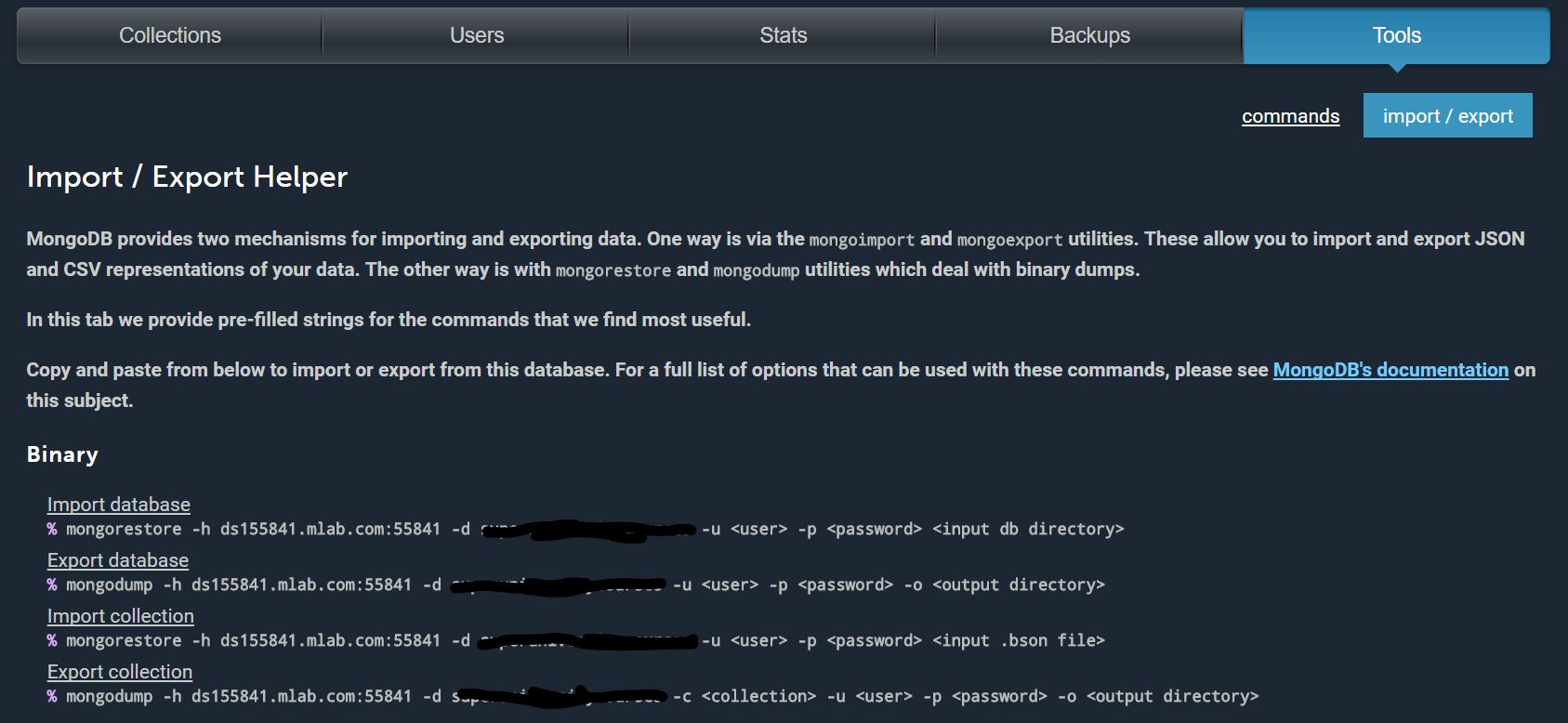
If you have a mlab account, you can find this in the first page after you login. The way to backup the whole database to your local client is to use code under export Database:
mongodump -h ds155841.mlab.com:55841 -d -u -p -o
Once you succeed, you will get:

And you can go to the dircetory you define as output directory. And foreach collection, you will get two output dump file “collectionName.bson” and “collectionName.metadata.json”
Use C# to manipulate cmd
First, Open a console project. {% asset_img 2VsConsoleProj.JPG Open Console Project%}
Second, input codes below in the Main thread
using System.Diagnostics;

static void Main(string[] args)
{
    //This ProcessStartInfo class define the environment in which you want to open the cmd prompt
    ProcessStartInfo startInfo = new ProcessStartInfo
    {
        //Right under this directory, You will have to find MongoDump Directory
        WorkingDirectory = "D:\\<Yoru working directory>",
        //The program you want to execute. Because you have added mongodump.exe to your environment path, you don't have to give the cmd line absolute path to find the executable.
        FileName = "mongodump",
        Arguments = "-h ds155841.mlab.com:55841 -d <databaseName> -u <user> -p <password> -o MongoDump\\" + DateTime.Now.ToString("yyyyMMddhhmm"),
        //CreateNoWindow = true,  //Once I set the process started by windows schedule, the prompt window will not show. If you have this problem you can try to set this parameter.
        UseShellExecute = false,
        RedirectStandardOutput = true
    };

    Its a class to manipulate cmd line
    using (Process exeProcess = Process.Start(startInfo))
    {
        if (exeProcess != null) exeProcess.WaitForExit();
        //We don't need any return words, therefore you can ignore the code below.
        while (!exeProcess.StandardOutput.EndOfStream)
        {
            string line = exeProcess.StandardOutput.ReadLine();
            // do something with line
            Console.WriteLine("This Line is written by me" + line);
        }
    }
}
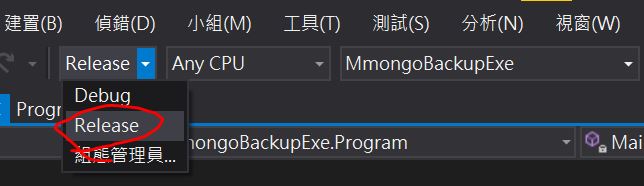
Third, set build type to be “release”, then build the program.
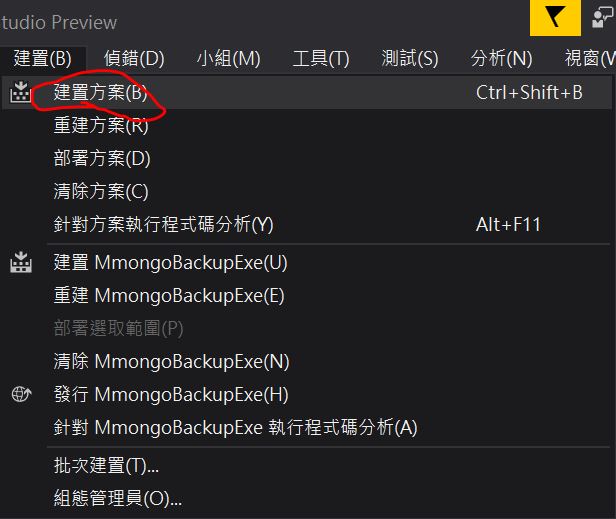
Fourth, check the directory of your console project, and find “\bin\Release\YourProjName.exe”. Once you execute this exeutable file, you will start the same process with using cmd to dump. In this way, you have successfully manipulated cmd by C#.
Use Windows10 task schedulor to execute this program autometically
this you can directly refer to this video